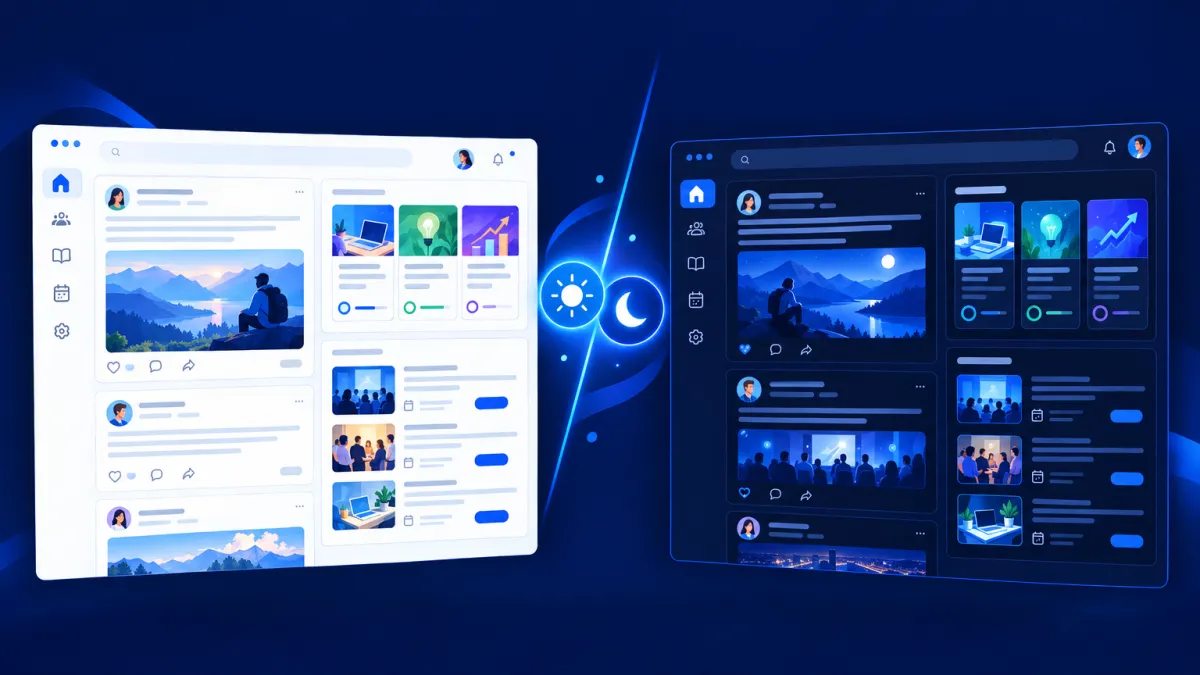
Dark Mode Is Now Live in Attractzen Communities — With Full Brand Control for Owners
Your Community Now Looks Great in the Dark
Dark Mode is now available in Attractzen communities on the web. Members can switch to a darker viewing experience with a single click, and community owners have something even more powerful: the ability to configure entirely separate brand palettes for light and dark appearances.
Your brand stays yours — in both modes.
What's New: Dark Mode for Members and Owners
One-Click Dark Mode for Members
Members can switch between light and dark appearances directly from the top navigation bar inside any community. The appearance switcher — a moon icon — is always visible and accessible. Once a member makes a selection, it's remembered automatically across page refreshes and sessions. No need to re-select it on every visit.
Separate Light and Dark Brand Palettes for Community Owners
This is where community owners gain real creative control. From Settings → Appearance, you can configure light and dark color palettes completely independently. Editing one palette does not overwrite the other. Each mode gets its own brand colors.
You can choose from preset community themes for a quick start, or fully customize every color in the palette. Preview changes in real time before saving. Your light brand and your dark brand can each reflect your identity precisely — rather than relying on automatic color inversion that may not align with your design.
Full Coverage Across the Community Experience
Dark Mode isn't limited to one section. It adapts across the entire community, including:
- Posts, comments, channels, and chats
- Member profiles, event listings, and calendars
- Attachment previews, mentions, and About pages
- Courses, lessons, assessments, assignments, quizzes, and live-session surfaces
- Discovery, onboarding, integrations, information pages, and account surfaces
The experience is consistent and visually polished in both modes.
How to Set It Up
As a member:
- Open your community on the web.
- Click the appearance switcher (🌙) in the top navigation bar.
- Select Dark Mode.
- Your preference is saved automatically.
As a community owner:
- Open your community's Settings → Appearance.
- Select either the Light or Dark color mode tab.
- Choose a preset theme or customize your palette color by color.
- Preview your changes in real time.
- Click Save Changes.
Existing communities continue working without any required changes. If you've previously set a custom theme, it will continue to use that palette in light mode until you configure a separate dark palette.
Why This Update Matters
Community members spend extended time inside their communities — reading posts, taking courses, attending events, and creating content. Dark Mode reduces eye strain in low-light environments and gives members a more comfortable experience for longer sessions.
For community owners, separate palettes mean your brand identity is preserved in both modes rather than inverted automatically. Your dark community can look intentionally designed, not just algorithmically adjusted.
It's a quality-of-life improvement for members and a branding win for owners.
Ready to Build a Community Your Audience Will Love?
Attractzen communities bring together courses, discussions, events, and content in one platform built for business. Book a demo to see everything it can do.


